
How to edit a document
Overview
Documents stored in the knowledge base can be edited at any time. Editing a document updates its content or attributes and automatically creates a new document revision, preserving the full change history.
Opening a Document for Editing
To edit a document:
Select the document from the table on the Documents page — or — Open it from a category page.
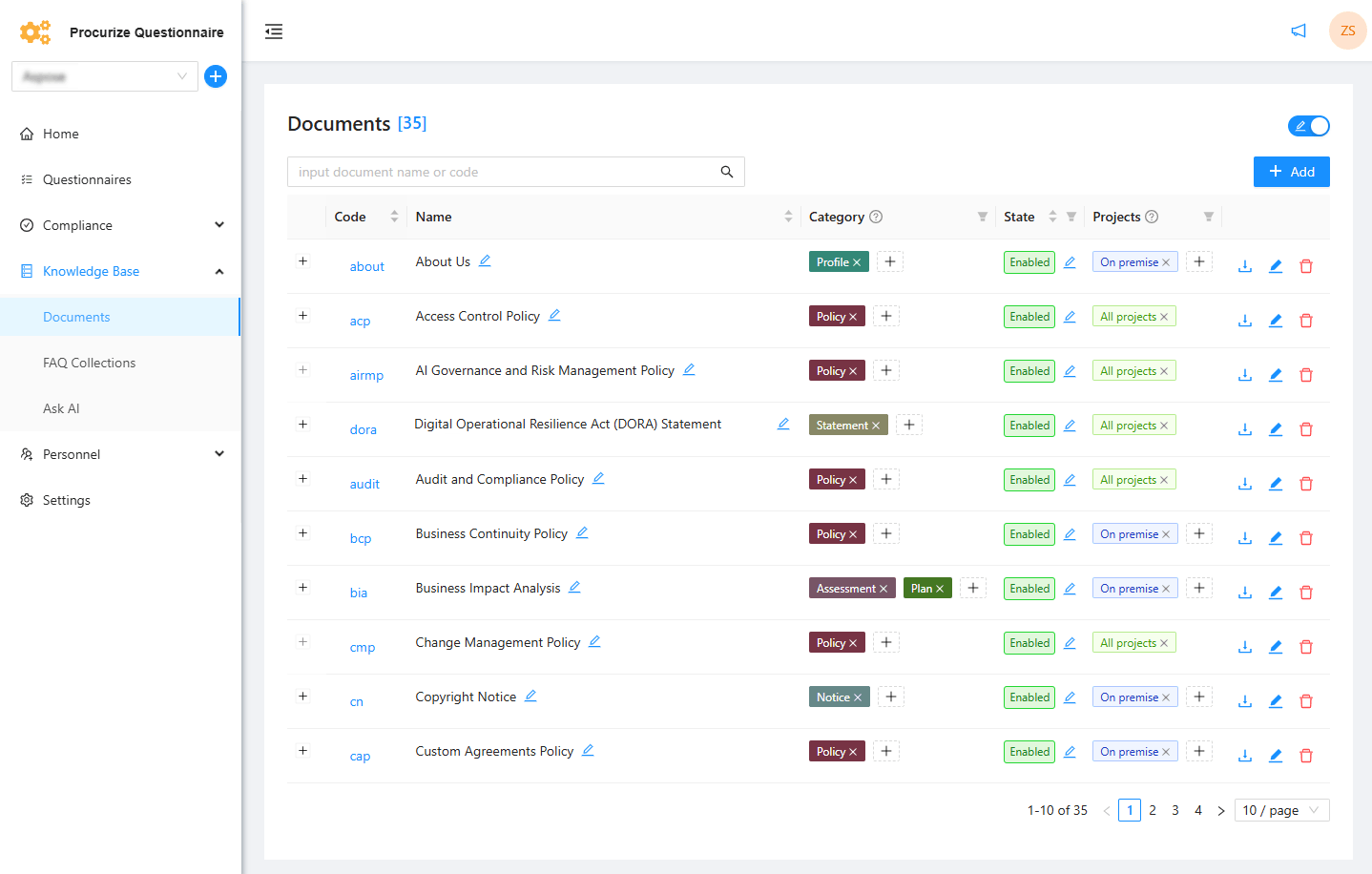
Open the Content tab.
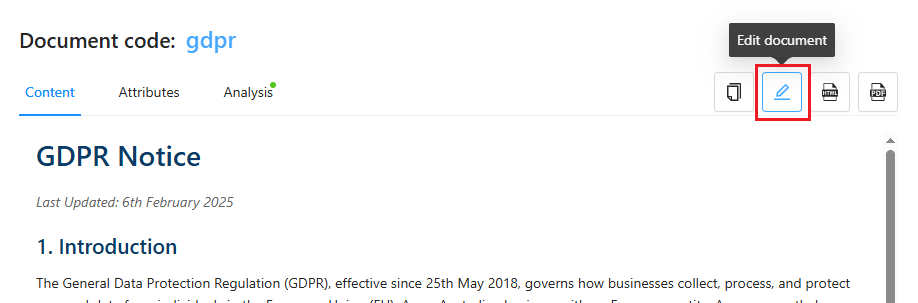
Click Edit document to enable editing.
Editing Document Content
While in editing mode, you can:
- Modify the document text directly
- Paste updated content
- Improve structure using Format with AI
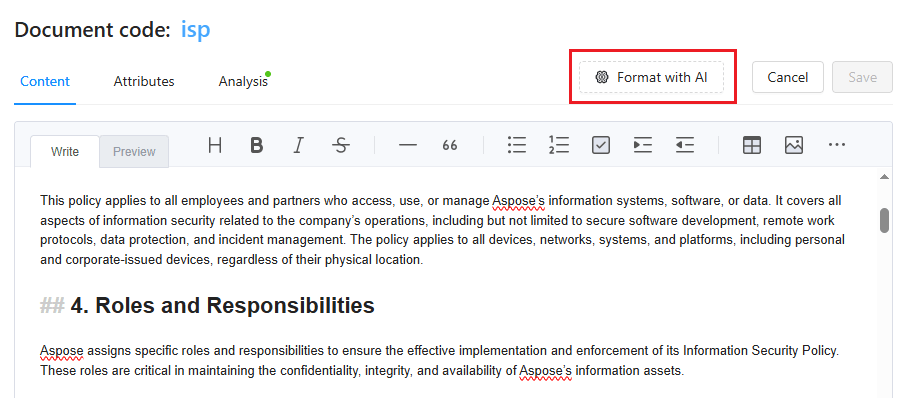
After making changes, click Save.
- The updated content is reindexed in the knowledge base
- A new document revision is created automatically
Document Revisions and Analysis
Each document update is stored as a separate revision.
- You can revert to any previous revision if needed
- Revisions preserve historical content for audit and review
Important: AI-powered document analysis results are linked to a specific document revision. When the document content changes, it is recommended to run document analysis again to generate updated results.
Editing Document Attributes
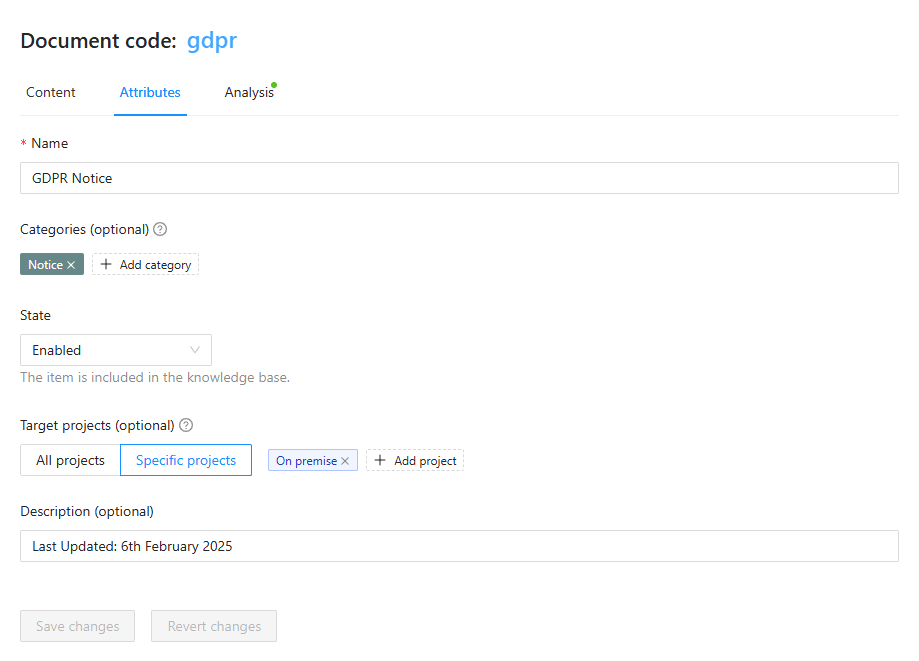
Document metadata can be edited from the Attributes tab.
You can update:
- Display name
- Description
- Document state
- Document categories
- Target projects (workspaces)
Related articles
How to improve document formatting