How to import a document to the knowledge base
Overview
The Knowledge Base allows you to store and analyze documents that are used by the platform for matching, analysis, and AI-driven insights. Documents can be uploaded from a file, imported from the internet, or added manually using the editor.
Note: To modify the knowledge base you need Editor rights. See the Roles and Permissions for details.
Importing a Document
To add a document to the knowledge base:
- Go to the Documents page.
- Enable editing mode using the toggle in the upper-right corner.

Click Add to create a new document.
Choose one of the available import options:
- Upload a document file
- Import a document from the internet
- Paste content directly into the editor
Supported Document Formats
The following formats are supported for document uploads:
- DOC, DOCX
- RTF
- ODT
- HTML
- TXT
- Markdown
You can also paste document content directly into the WYSIWYG editor.
Formatting and Structure
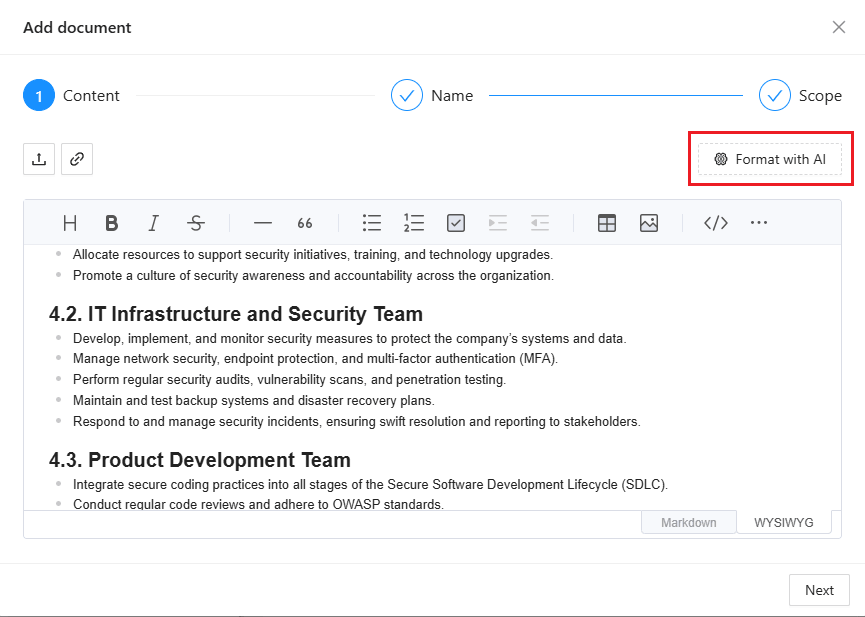
If the uploaded document has formatting issues, use the Format with AI option.
- Automatic formatting improves document structure
- Well-structured documents are better understood by the platform
- Improved structure leads to higher-quality analysis results
Describe the document
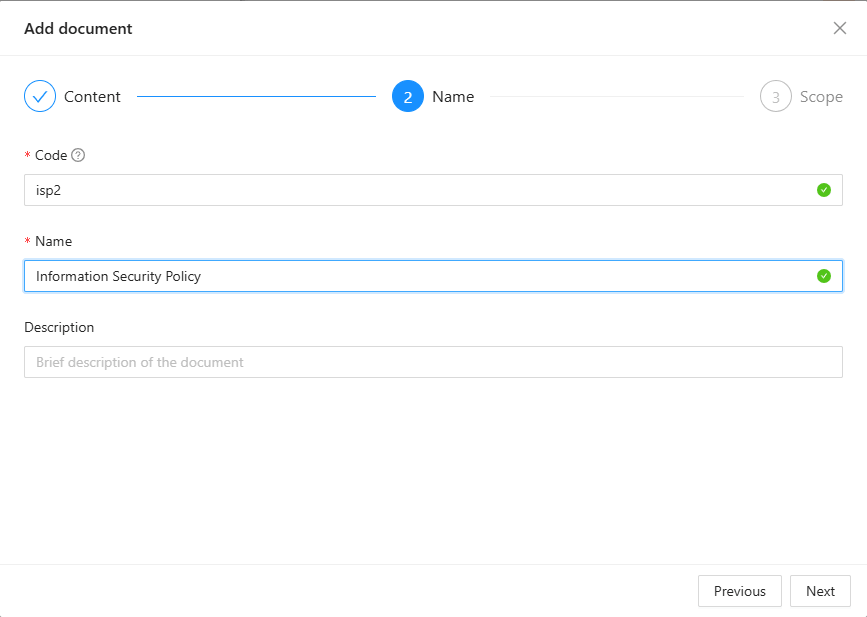
Enter the document’s name and unique identifier for your organization. Add a description of the document if necessary.
Finalizing the Document
Before saving the document:
- Select the document state
- Assign a document category
- Select a scope - specific or all projects. Documents not related to these scopes will not be included in the knowledge base when analyzing other documents and completing questionnaires.
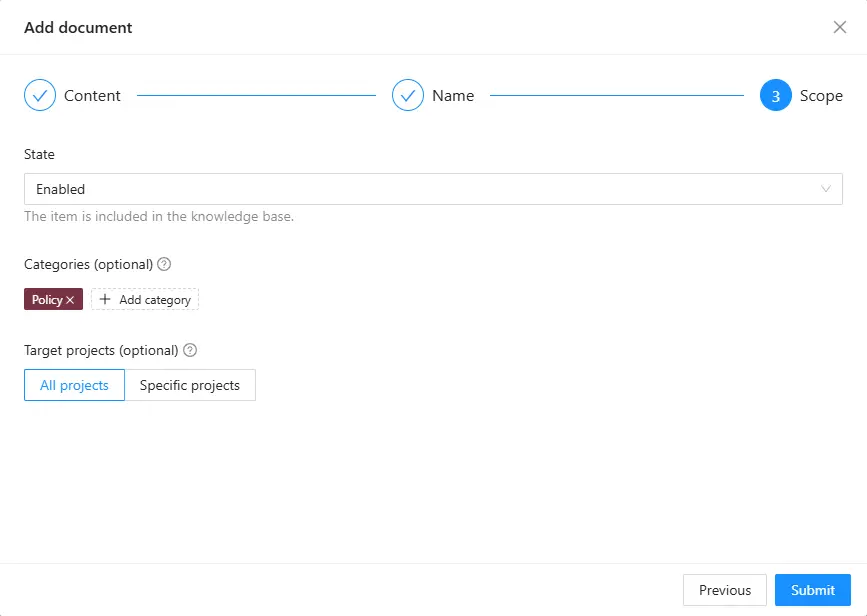
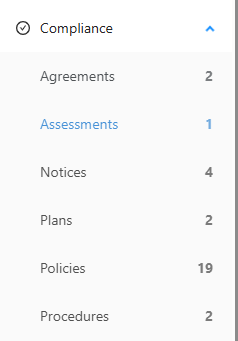
Documents with the Enabled state are displayed on the relevant category pages in the Compliance section.
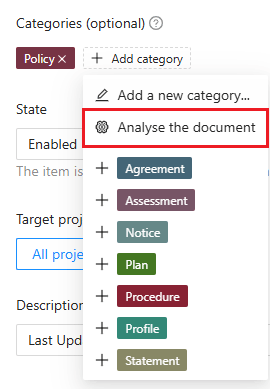
You can also run a quick document analysis, allowing the AI to suggest several relevant categories for your review and selection.